
How to Cancel a LinkedIn Connection Request in 3 Steps

LinkedIn is a powerful dietitian job search tool. LinkedIn is also an awesome social media network that helps you expand your professional network, enhance your online presence, and create new opportunities for lead generation or business development. With LinkedIn you can request 1st degree connections or accept an invitation to connect. I even recommend focusing on your LinkedIn connections on a daily basis, if you can.
Sending a LinkedIn invitation is a vital part of building your LinkedIn network, but sometimes you may need to cancel your LinkedIn invitation. As an avid LinkedIn user I have done this several times.
In this article, I will share the easy way to cancel a LinkedIn connection request in just three simple steps, ensuring you maintain a good acceptance rate and keep your LinkedIn account in good standing. You can easily view your sent invitations and withdraw any that are still waiting for a response from the recipient. Here's how.
Step 1: Navigate to Pending Invitations
To begin, access your LinkedIn account either on your mobile device or desktop computer. For iOS devices, open the LinkedIn app, while desktop users can visit the LinkedIn website. Once logged in, locate the 'My Network' tab on your top toolbar on the desktop or bottom navigation on a mobile, which will display all your current LinkedIn connections as well as any outstanding connection requests. Click on 'Manage' on the mobile or the dropdown menu next to 'Invitations' to view your pending invites. Then click on 'Sent' to view those invitation requests.
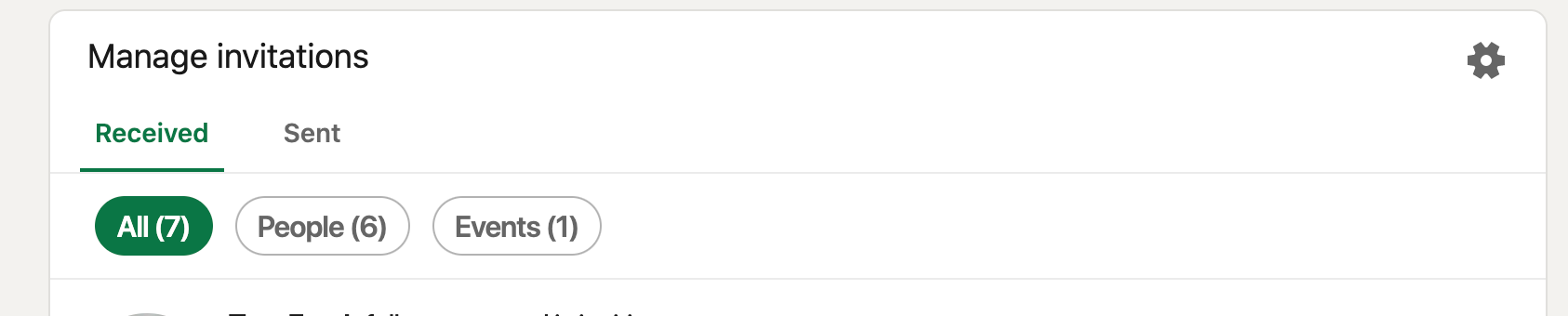
Step 2: Find the Connection Request You Want to Cancel
Now that you have accessed your pending invitations, search for the LinkedIn connection request you wish to cancel. Possible reasons for canceling a request might include accidentally sending it to the wrong person, realizing the person is not a suitable addition to your professional network o the quality of your network, or having second thoughts about connecting with person whose current position is not in alignment with your connection goals (or maybe you want to stay clear of certain family members!). Be sure to double-check the LinkedIn profile of the person whose invitation request you are canceling, especially if you have a mutual connection.
Step 3: Cancel the Request
Once you have located the connection request, click on the dropdown menu next to the invitation and select the withdraw button. In the pop-up that appears, confirm your decision. This will cancel the LinkedIn connection request immediately. It is important to remember that LinkedIn has a daily limit on the number of connection requests you can send, and canceling a request will not increase this limit. So, be careful when sending new connections to avoid LinkedIn jail or creating a red flag on your account. Also know that when you withdraw an invitation, the connection won't be notified.
Removing a connection after they accepted your invitation
If you want to remove a connection after the LinkedIn request was accepted, you still have options! Connections you remove will no longer be 1st-degree connections and won’t appear in your Contacts section, or address book. You can remove a connection by visiting their LinkedIn profile or from your Connections page.
To remove a connection on the mobile app:
- Go to the profile of the member you’d like to remove.
- Tap the More... button.
- Tap Remove connection > Remove connection in the pop-up window to confirm.
To remove a connection from their profile page:
- Navigate to the connection's profile.
- Click the More... button in the introduction section.
- Select Remove Connection. Once you select Remove Connection, the status will change to Connection Removed.
To remove a connection from your Connections page:
- Click the My Network icon at the top of your LinkedIn homepage.
- Click Connections on the left rail.
- Click the More icon next to the connection you'd like to remove and click Remove connection.
- Click Remove from the Remove Connection pop-up window.
Additional considerations
According to LinkedIn, there are a few considerations when cancelling a connection request:
- There isn’t an option to bulk withdraw invitations that you’ve sent to multiple recipients.
- Withdrawing an invitation will stop the recipient from receiving any further reminder emails to accept the invitation.
- If you withdraw an invitation, the recipient won't be notified, as previously noted.
- You can withdraw an invitation to connect to other LinkedIn members or to join Pages or Events if the recipient has not yet responded.
- After you withdraw an invitation, you won’t be able to resend an invite to the same recipient for up to three weeks.
- If the recipient has already accepted your invitation to connect, remember you still have the option to remove them as a connection.
Best Practices for LinkedIn Invitations
When sending LinkedIn connection request messages, it is often a good idea to include a personal message that highlights why you want to connect with the person. This helps improve your acceptance rate and provides a stronger foundation for building your professional network. LinkedIn Premium Subscription users, including LinkedIn Sales Navigator, can also send direct messages to people they are not connected with, further enhancing their LinkedIn outreach campaign. This includes 2nd degree connections and 3rd degree connections.
Takeaways
LinkedIn is an essential tool for any professional seeking to grow their network and open new doors for their career. By following these three simple steps, you can easily cancel a LinkedIn connection request, ensuring you maintain a strong LinkedIn profile and keep your network focused on the right message. With a little attention to detail and adherence to best practices, you can maximize your LinkedIn presence and avoid potential pitfalls while building a powerful professional network.
